
Get access to Marketing Miner’s features and data directly in your AI assistant (ChatGPT or Claude) via MCP. This lets you optimize your website and make important decisions based on data, not on AI guesswork. You’ll have at hand, for example, data on keyword search volumes, which keywords your competitors rank for and how much traffic they get from them, and more. Below you’ll find your access credentials and a connection guide. What all can your AI assistant do thanks to our MCP?
Access credentials
In all the guides below, sample values of OAuth Client ID and OAuth Client Secret are shown. You must insert your own, which you’ll find on this page in your account.
So let’s take a look at how to connect Marketing Miner MCP to ChatGPT, Claude, and Claude Code step by step.
How to connect ChatGPT
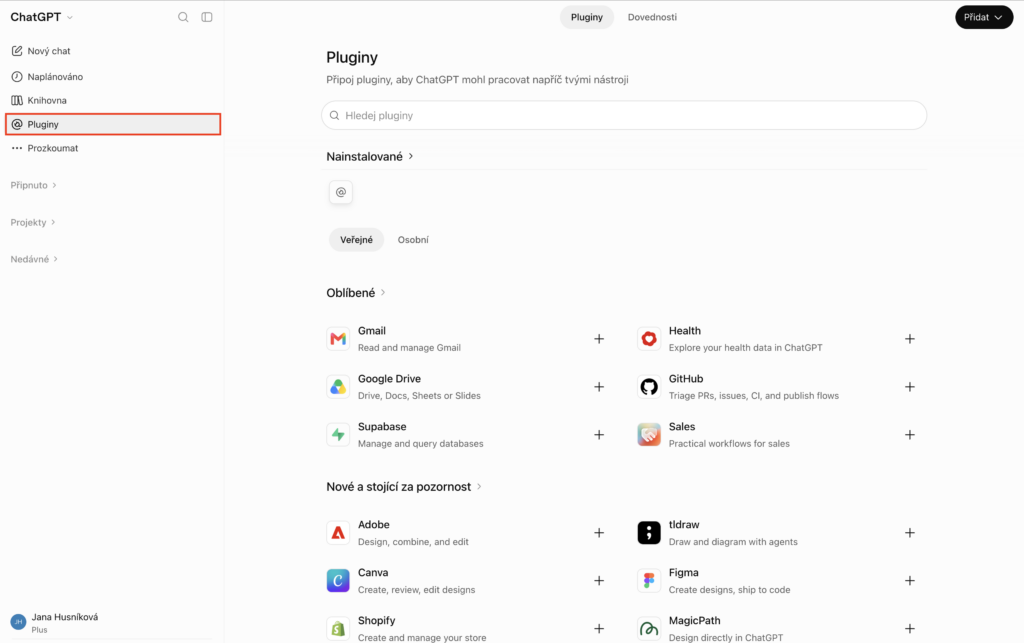
1. Open the Plugins section
In ChatGPT, use the left navigation menu to go to Plugins, or open this link directly: Plugins.
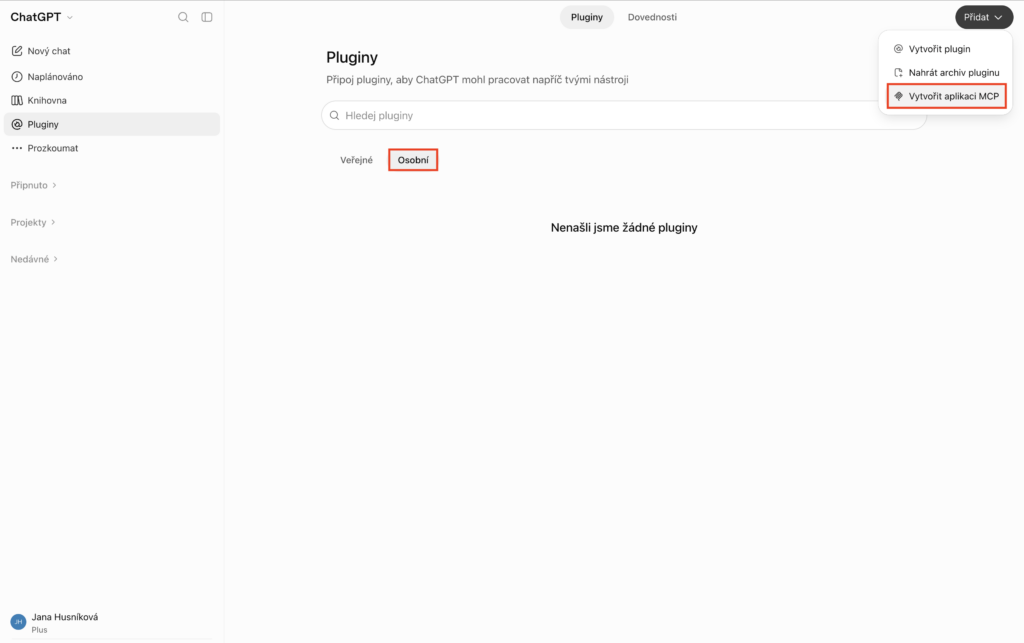
2. Create a new plugin
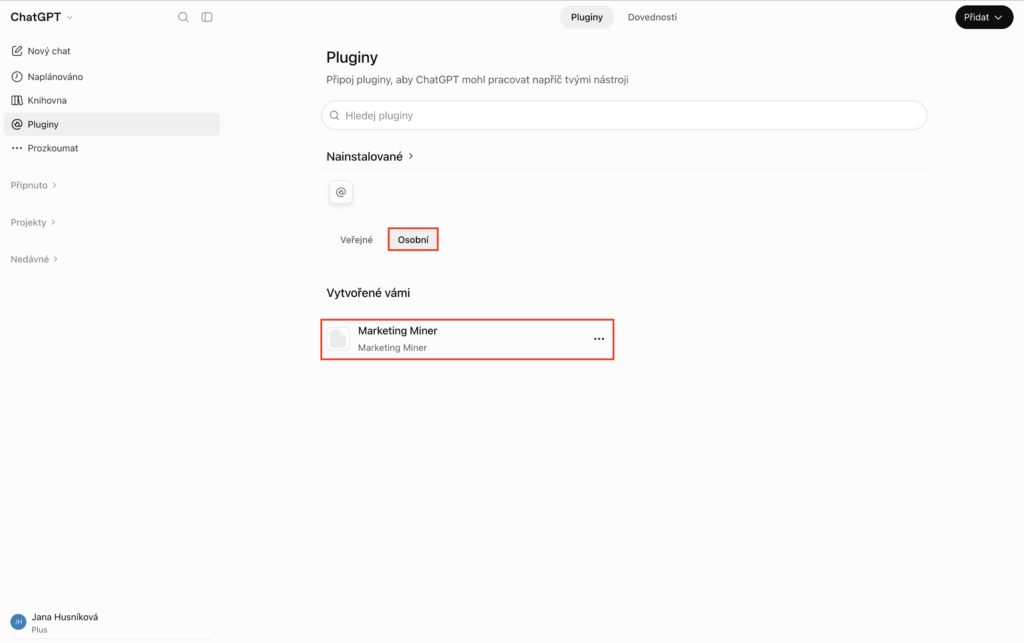
Select the Personal tab. In the top right, choose Add → Create MCP app.
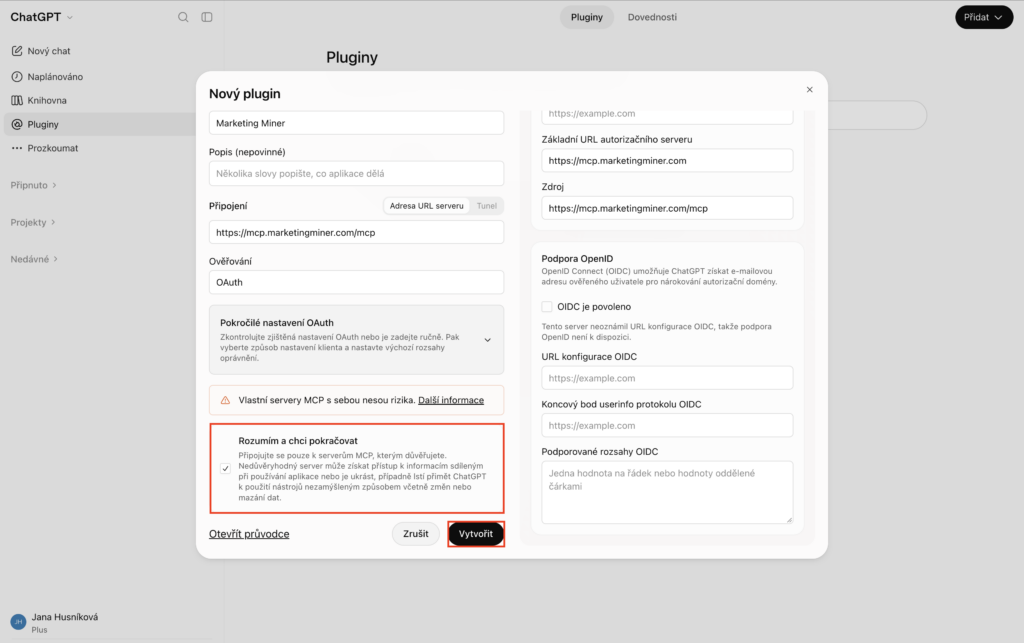
3. Fill in the name and server URL
In the form, fill in the name and server URL.
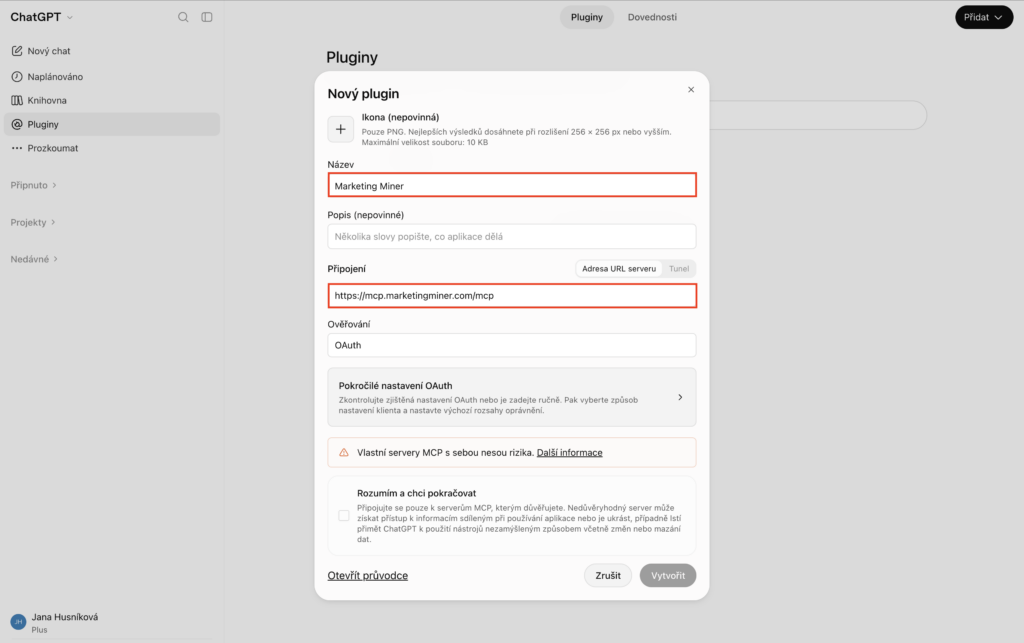
Name
Marketing MinerConnection (server URL)
https://mcp.marketingminer.com/mcp4. Fill in the OAuth details
Expand Advanced OAuth settings and paste the OAuth Client ID and OAuth Client Secret.
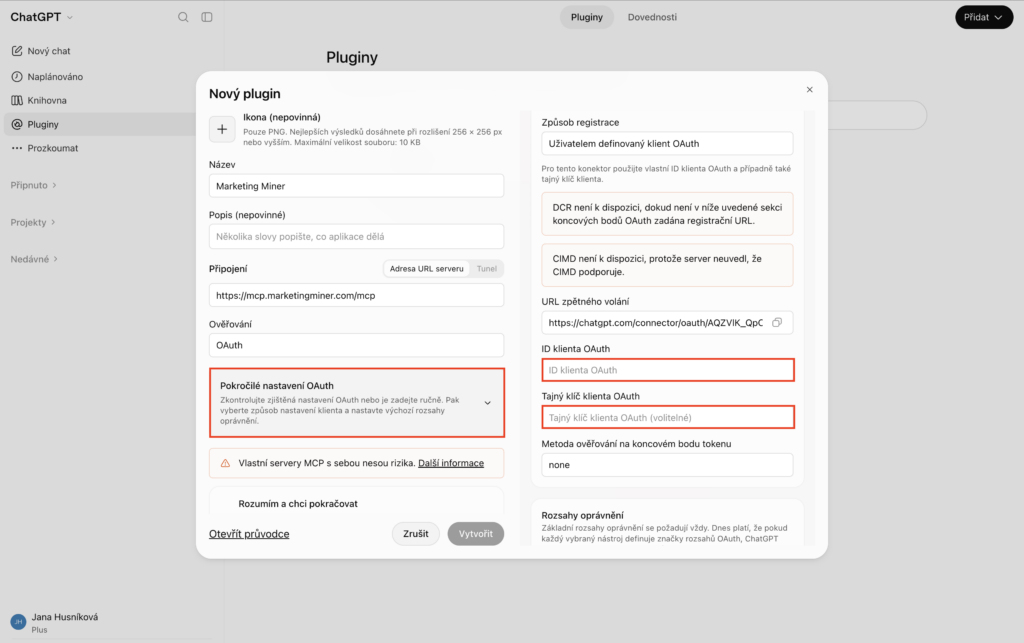
OAuth Client ID – you’ll find it in your profile
4e82ce3b63faf8e6b19859bb1876c845 (example)OAuth Client Secret – you’ll find it in your profile
66329bd2082161e6ab57531690001c78 (example)5. Confirm and create the new plugin
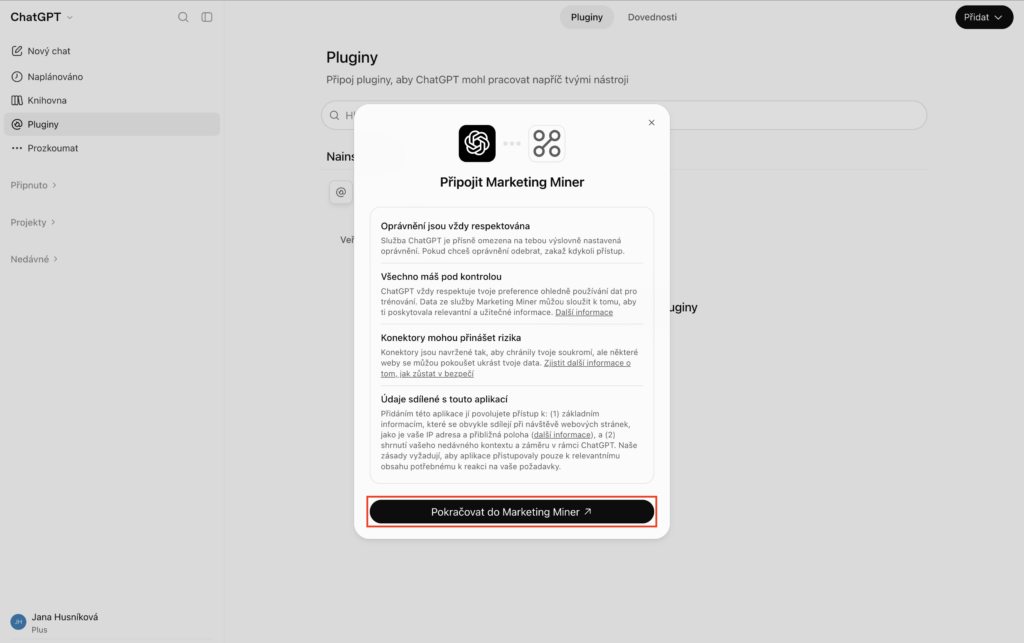
In the bottom left of the form, tick I understand and want to continue. Then click Create and Continue to Marketing Miner. Once connected, you will see the Marketing Miner plugin in the list of your personal plugins.
6. Test the connections
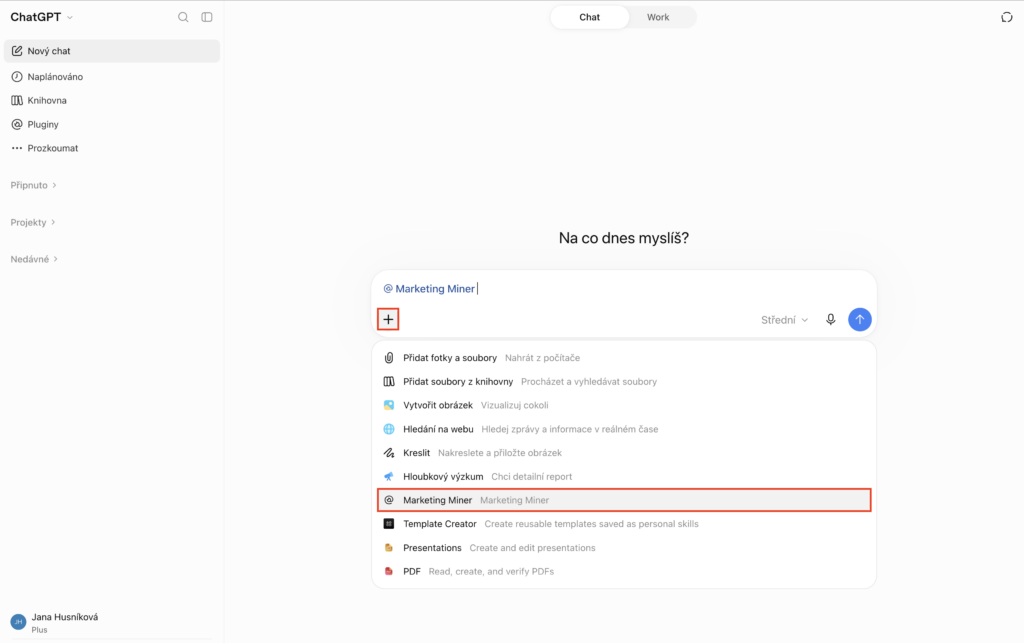
Go to a chat. Click + and select the Marketing Miner plugin. You can then ask your question, e.g. “What is the traffic of Amazon.com in the US?”
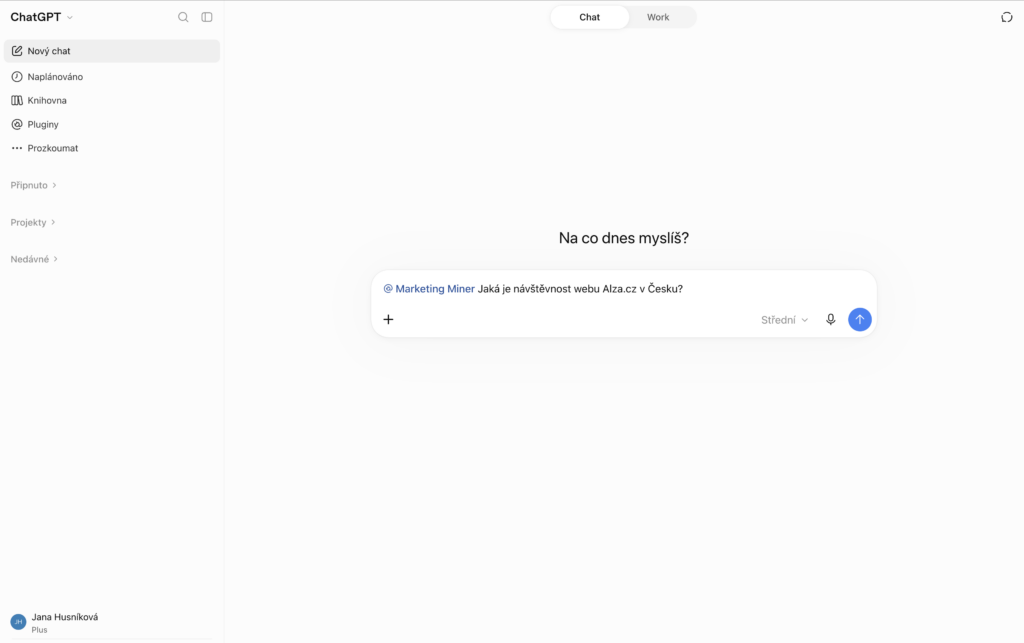
6. Done
Everything is set up and working. You can now use Marketing Miner data in your ChatGPT.
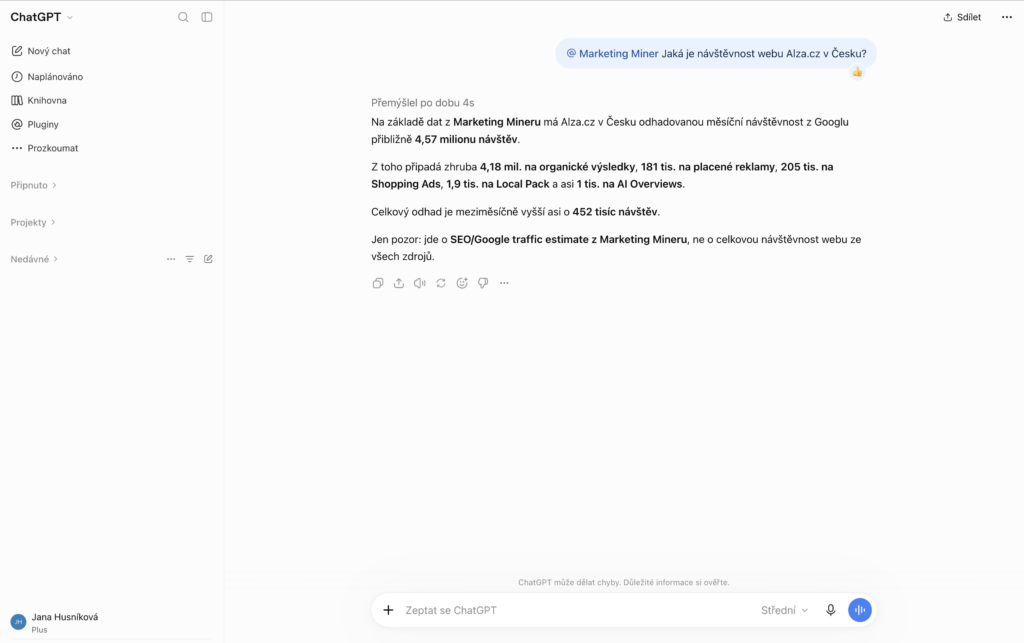
How to connect Claude
1. Open the Connectors section
In Claude, go to Settings → Connectors and click +Add, or open this link directly: Add custom connector
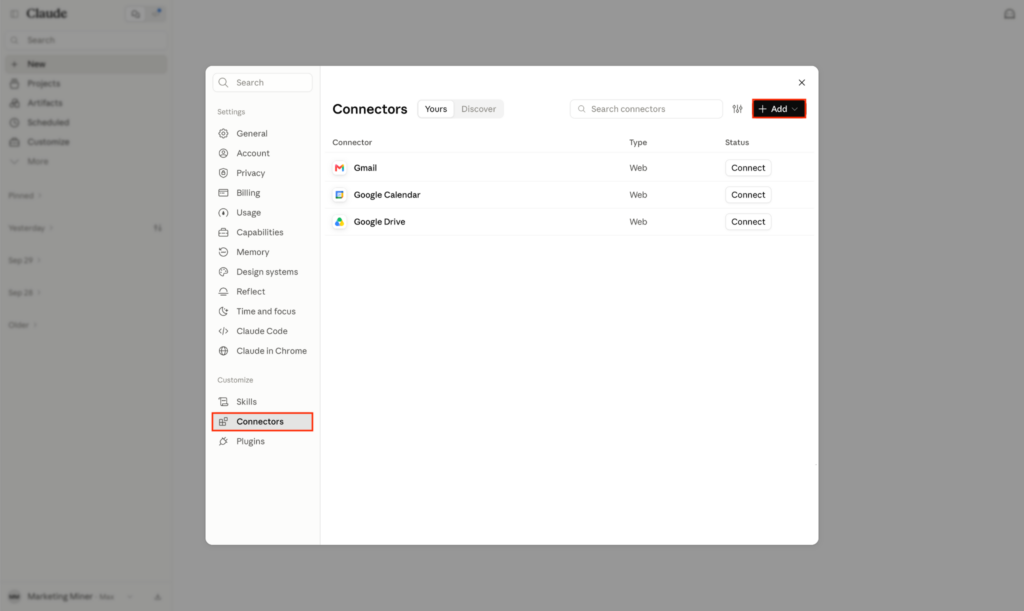
2. Create a new connector
Select Add custom connector. In the form, fill in the name and server URL.
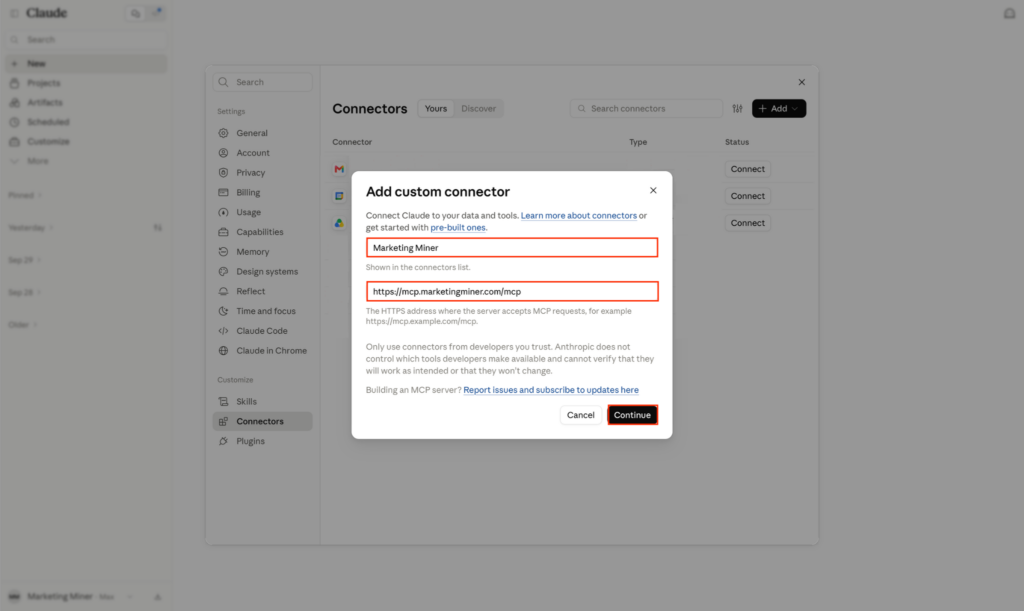
Name (connector name)
Marketing MinerRemote MCP Server URL
https://mcp.marketingminer.com/mcp3. Fill in the OAuth details
In the next step, paste the OAuth client ID and OAuth client secret. Then click Add.
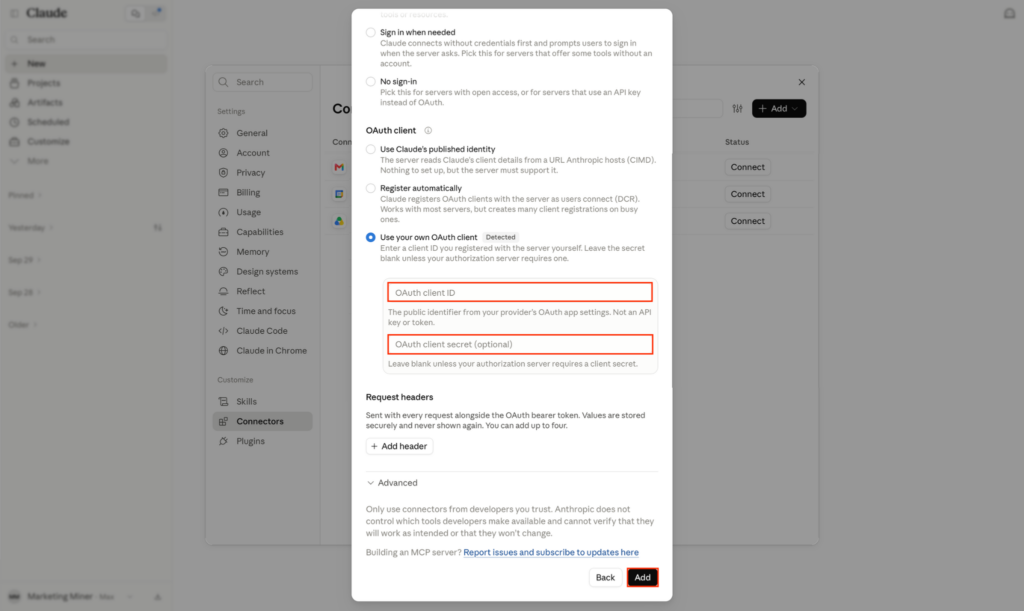
OAuth Client ID – you’ll find it in your profile
4e82ce3b63faf8e6b19859bb1876c845 (example)OAuth Client Secret – you’ll find it in your profile
66329bd2082161e6ab57531690001c78 (example)4. Connect the new connector
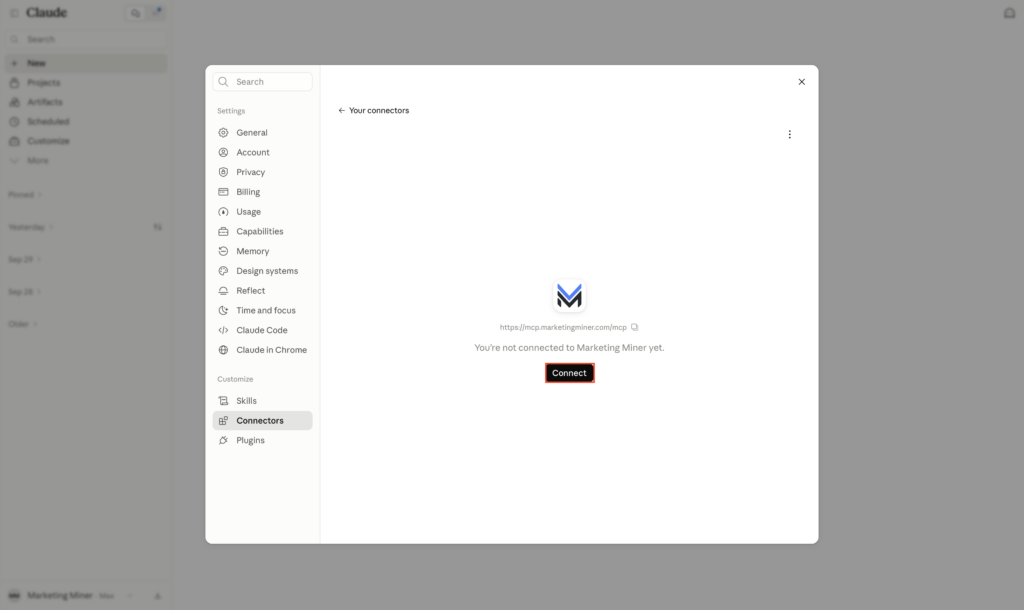
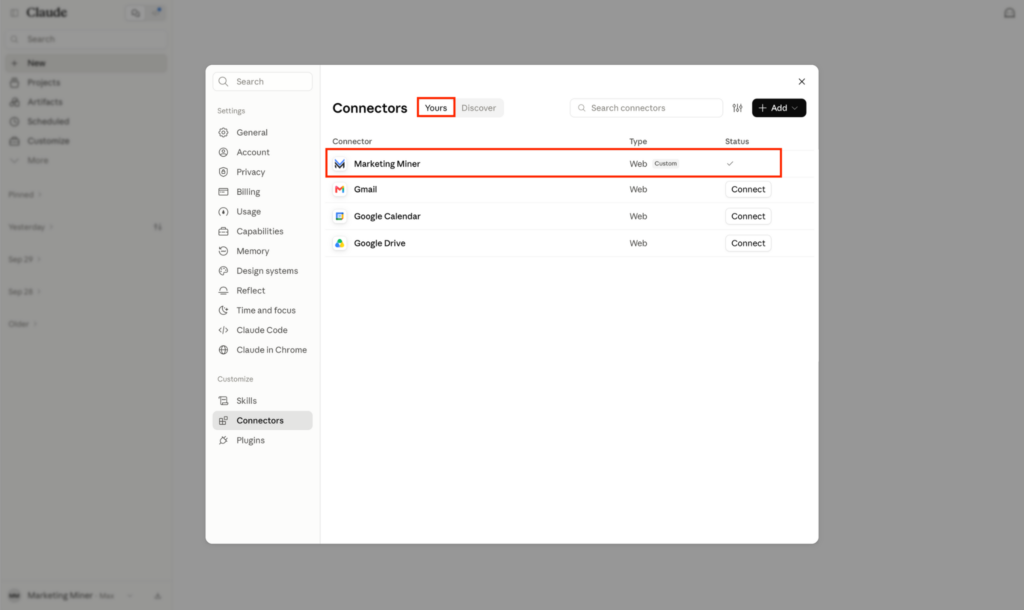
Click Connect. Once connected, you will see the Marketing Miner connector in the list of your connectors.
5. Test the connection
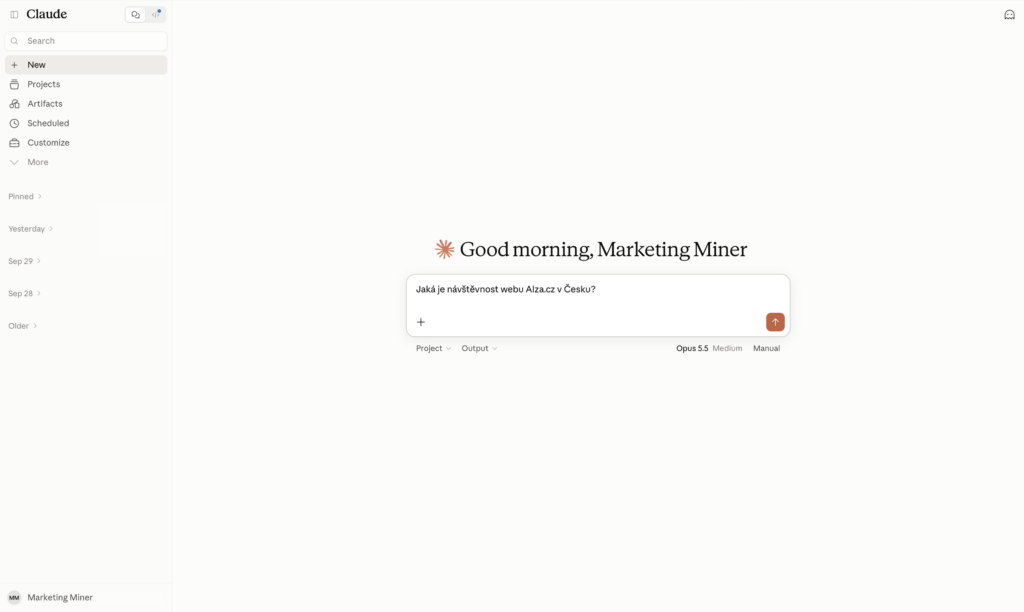
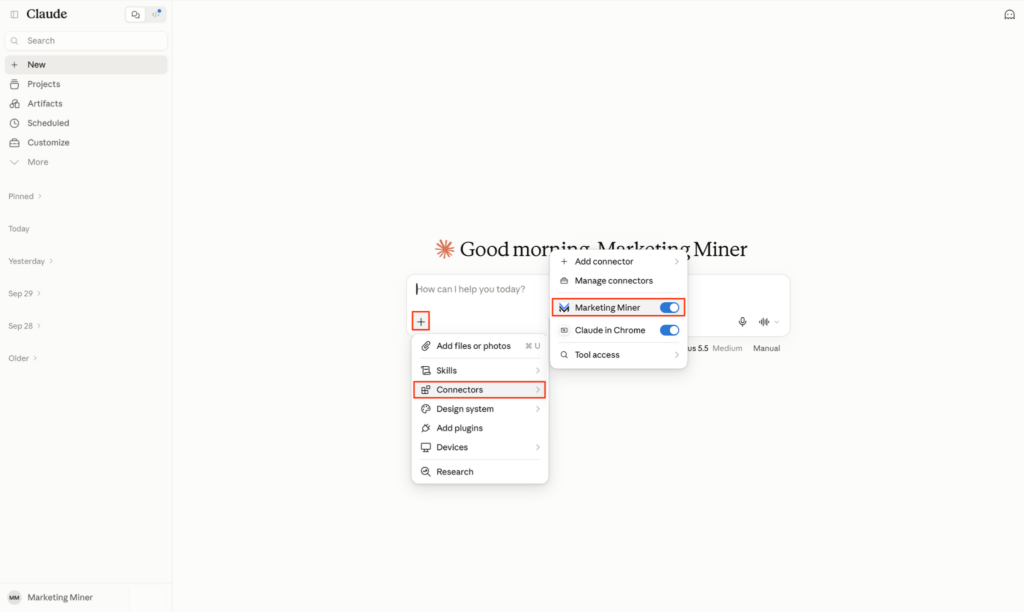
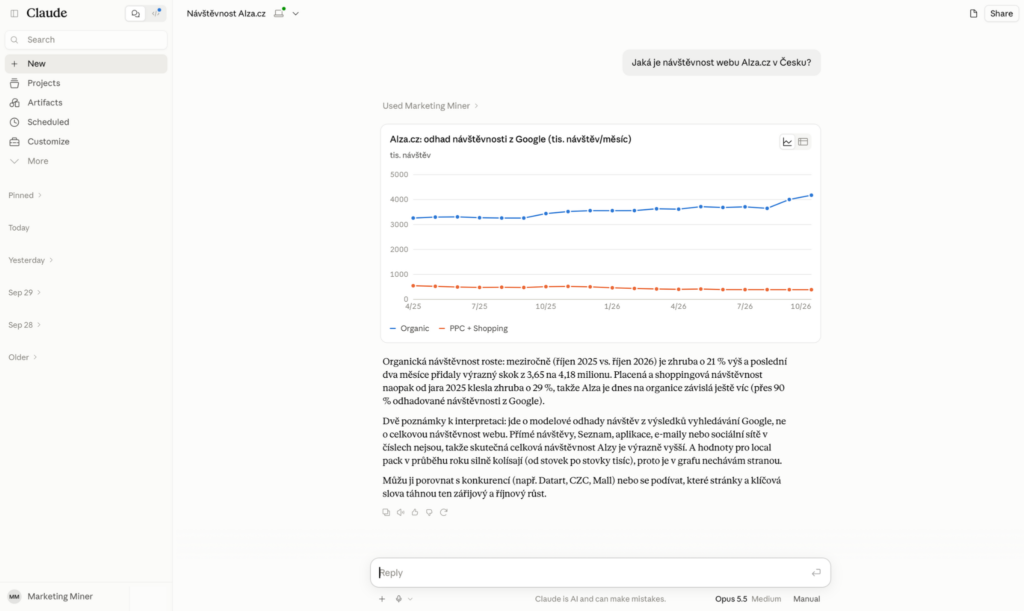
Go to a chat and ask your question, e.g. “What is the traffic of Amazon.com in the US?” Claude should use data from the Marketing Miner tool. If it does not, check that the connector is active. In the chat, click + → Connectors → Marketing Miner.
6. Done
Everything is set up and working. You can now use Marketing Miner data in your Claude.
How to connect Claude Code
/mcp command in Claude Code – if Marketing Miner appears in the list, you’re done and can skip the steps below. If it’s not there, continue with the guide.1. Check your Claude Code version
Connecting with pre-filled OAuth credentials requires Claude Code version 2.1.30 or newer. You can check the version with the command:
claude --versionIf you have an older version, update it with the command:
npm install -g @anthropic-ai/claude-code2. Add the MCP server
In the terminal, run the following command. The secret key is passed directly via an environment variable, so you don’t have to enter it manually. The -s user switch ensures the connector will be available across all your projects.
Windows (PowerShell):
$env:MCP_CLIENT_SECRET = "66329bd2082161e6ab57531690001c78"
claude mcp add --transport http -s user `
  --client-id 4e82ce3b63faf8e6b19859bb1876c845 `
  --client-secret `
  --callback-port 8080 `
  marketing-miner https://mcp.marketingminer.com/mcp
macOS / Linux:
export MCP_CLIENT_SECRET="66329bd2082161e6ab57531690001c78"
claude mcp add --transport http -s user \
  --client-id 4e82ce3b63faf8e6b19859bb1876c845 \
  --client-secret \
  --callback-port 8080 \
  marketing-miner https://mcp.marketingminer.com/mcp
Claude Code may ask whether the client has a secret. Choose the option “Yes, has a secret” – it will take the key from the MCP_CLIENT_SECRET variable. At the “Do you want to proceed?” prompt, confirm Yes.
3. Restart Claude Code
Claude Code loads MCP servers only at startup, so the currently running session doesn’t yet see the connector you just added. To verify it’s saved correctly, use the command:
claude mcp listThen restart Claude Code – end the session (press Ctrl+C twice or type the /exit command) and start it again with the claude command.
4. Sign in via OAuth
In the session, enter the /mcp command, select marketing-miner and choose Authenticate to complete the OAuth sign-in.
/mcpClaude Code should open a browser with the sign-in. If the browser doesn’t open by itself, copy the link (URL) shown in the terminal and paste it manually into your browser.
This links your account with Marketing Miner. Then close the browser and return to Claude Code, where you should now have Marketing Miner MCP successfully connected.
5. Test the connection
In the session, type for example “What is the traffic of the Amazon.com website in US?” – Claude Code should offer to use the Marketing Miner tool.
6. Done
Everything is set up and working. You can now use Marketing Miner in your Claude Code.